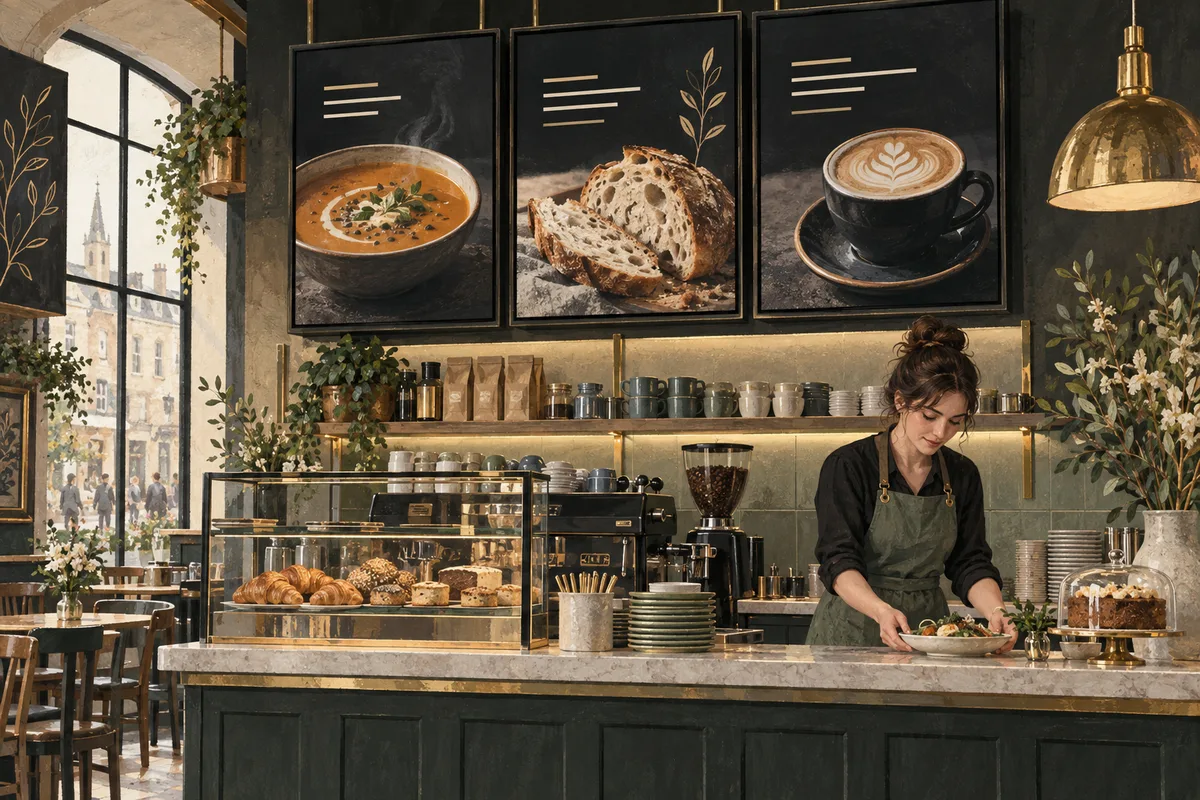
A useful digital menu board makes items, prices and ordering choices easy to understand from the queue. Organise the menu around how customers order, keep essential information stable, use accurate food imagery and assign someone to check changes. Start with one readable menu before adding animations or rotating promotions.
Digital menu boards can make updates easier, but replacing paper with pixels does not automatically make a menu clearer. A crowded layout remains crowded when it glows. This guide focuses on the practical work: deciding what belongs on the screen, designing for the actual counter, handling availability and maintaining accurate information during a busy service.
Observe the ordering journey
Stand where customers first see the menu and follow their path towards the till. Notice when they start choosing, where the queue blocks the view and whether they can read without stepping out of line. A screen placed beautifully above the counter may be too close to help someone who must decide before reaching it.
Ask staff which questions they answer repeatedly. Customers may struggle to distinguish sizes, find a vegetarian option or understand what comes with a meal. Those questions are useful design evidence. Build the menu around the decisions people actually make rather than the order in which products appear in an internal spreadsheet.
Separate browsing from ordering information where possible. A promotional image can attract attention from outside, while the main menu supports a choice inside. Trying to make one screen perform both jobs often produces a compromise: too much detail for passers-by and too little stability for customers ready to order.
Group items so the choice feels manageable
Use categories that customers recognise. Keep related items together and make the category heading visually distinct. Align names and prices consistently so people do not have to trace a complicated path across the screen. If a product has several sizes, present the relationship clearly rather than scattering options into unrelated corners.
Prioritise the information needed for the next decision. A short description may help explain an unfamiliar dish, while a familiar coffee name may need only its size and price. Avoid treating every item as an advertising headline. Too many competing claims can make a simple menu feel like a loud meeting.
Consider whether the complete menu fits at a readable size. If it does not, reduce unnecessary wording, use another surface or separate categories across screens. Shrinking everything until it fits is rarely a good solution. The customer's eyes are not equipped with your design software's zoom control.
Keep essential menu information available
Customers should not have to wait through a long promotional loop to see the item they are trying to order. Keep core choices stable where possible. Use a separate area or screen for rotating specials if the layout and equipment support it without reducing readability.
If a menu must rotate, test the experience from the queue. Can a new customer understand the available choices without missing a category? Does the timing create hesitation at the till? A sequence that looks lively in a presentation can be frustrating when somebody is trying to compare two prices.
Provide an appropriate alternative when the display is unavailable or difficult for someone to use. A printed menu or staff-assisted option can keep service moving. Digital presentation should support the ordering process, not create a single point of failure. Plan that backup before the first busy period rather than after a player decides to take lunch early.
Make prices and details easy to maintain
Choose one approved source for menu names, prices and descriptions. Assign responsibility for checking it and for publishing the screen version. When several people update separate copies, discrepancies become more likely. Keep a simple record of the approved change and when it should take effect.
Check the displayed price against the ordering system and any other active menu surfaces before service. Do not assume that updating artwork automatically updates a till or delivery platform. These may be separate systems. If an integration exists, verify its exact behaviour and still check the customer-facing result.
Important food information should follow your business's approved process and applicable requirements. Do not let decorative design hide details customers need, and do not invent dietary or ingredient claims from an image. Have the responsible team verify wording and provide a clear route for questions. This guide addresses presentation and operations rather than replacing specialist food-information advice.
Use food imagery honestly and sparingly
A clear photograph can help someone understand a dish, especially when the name is unfamiliar. Choose images that fairly represent what the customer will receive. Keep styling attractive but believable. A sandwich photographed like a small architectural monument may create expectations the kitchen cannot reasonably meet.
Use a few strong images rather than a thumbnail for every item. Too many pictures reduce space for readable names and prices. Crop deliberately for the screen shape and keep important parts of the dish visible. Avoid placing essential text over a busy food image unless the contrast remains strong.
Check image quality at the display's size and distance. Keep high-quality source files, then export suitable versions for the player. Confirm permission to use the imagery. If an image is an illustration or a conceptual example, do not present it as a photograph of the actual meal. Accurate expectations are part of a good customer experience.
Plan breakfast, lunch and availability changes
Write the service periods before creating schedules. Record the intended start and end times and identify who approves them. A menu should match what the kitchen can actually provide, including preparation and changeover time. Coordinate with operations rather than selecting neat clock times only because they look convenient.
Prepare a process for sold-out items and unexpected changes. Decide who can remove or replace an item and how quickly staff should report it. If the platform does not support a particular live update workflow, use a documented alternative rather than pretending the screen is automatically linked to stock.
Test the transition between menus on the physical display. Confirm that yesterday's special does not remain in a fallback playlist and that a recurring schedule does not override a one-off closure. The scheduling guide includes checks for overlaps, date boundaries and offline behaviour.
Check hardware and placement during service conditions
Evaluate brightness, reflections and viewing angles when the business is actually operating. Lighting, steam, window glare and queue positions may differ from an empty-room installation test. Follow equipment guidance for the environment, ventilation and operating hours, and use appropriate installation professionals where needed.
Check that the player and display recover correctly after an agreed restart. Confirm the correct input and power arrangement, and label equipment so staff can identify it. Keep access for maintenance without requiring someone to dismantle a decorative wall or climb through a storage cupboard.
Run a pilot with realistic content and observe the first service period. Ask staff whether customers hesitate, miss categories or repeatedly ask about information that should be visible. Make changes based on those observations. A menu board is successful when it helps service, not when it wins the internal competition for most animated garnish.
Use a daily menu board check
- Confirm that every display is on and showing the correct menu.
- Compare key prices with the approved source and ordering system.
- Check availability, specials and service-period timing.
- Read the menu from the normal customer position.
- Inspect cropping, transitions and any blank areas.
- Confirm that the backup menu is available.
- Record faults and assign a person to resolve them.
Keep this check short enough to become part of opening duties. A routine that takes little time is more likely to be followed than a complicated audit nobody remembers. When a change is published during service, repeat the relevant checks rather than assuming the original morning review still covers it.
Review the design periodically with staff. Remove obsolete promotions and update templates when repeated questions reveal a problem. Keep approved previous versions available so a mistaken change can be reversed. For a broader rollout, standardise the process while allowing genuine differences in local menus and opening hours.
Measure clarity before chasing sales claims
Useful early measures include fewer repeated menu questions, fewer corrections at the till and faster completion of a familiar ordering task. Record observations across comparable periods. Sales can be affected by many factors, so avoid attributing every change to the screen alone.
Test one improvement at a time, such as clearer size labels or a more prominent meal combination. Keep the rest of the menu stable long enough to learn from the change. Use the design guide to refine hierarchy and the cost guide to evaluate the whole setup.
Frequently asked questions
Should a digital menu always be animated?
No. Stable text is often more useful when customers need to compare choices and prices. Motion can support a separate promotion or demonstrate a product, but it should not make the core menu harder to read. Test the experience from the queue before adding more movement.
Can one screen show the whole menu?
Possibly, if the menu remains readable from the intended distance. The number of items, descriptions and size options matters more than simply fitting everything inside the canvas. Simplify or use additional surfaces when necessary rather than reducing essential text to an uncomfortable size.
Will the board update prices automatically?
Only if a supported integration has been configured and verified. An ordinary image or video menu usually requires its own update process. Confirm the actual workflow for your system and check the physical display against the approved price source after any change.
What should happen if the screen stops working?
Use the planned backup menu and report the fault through a clear process. Check basic power and input settings using the documented instructions. Keep service information available to customers while the technical issue is resolved, rather than allowing the display to become the only source of essential choices.