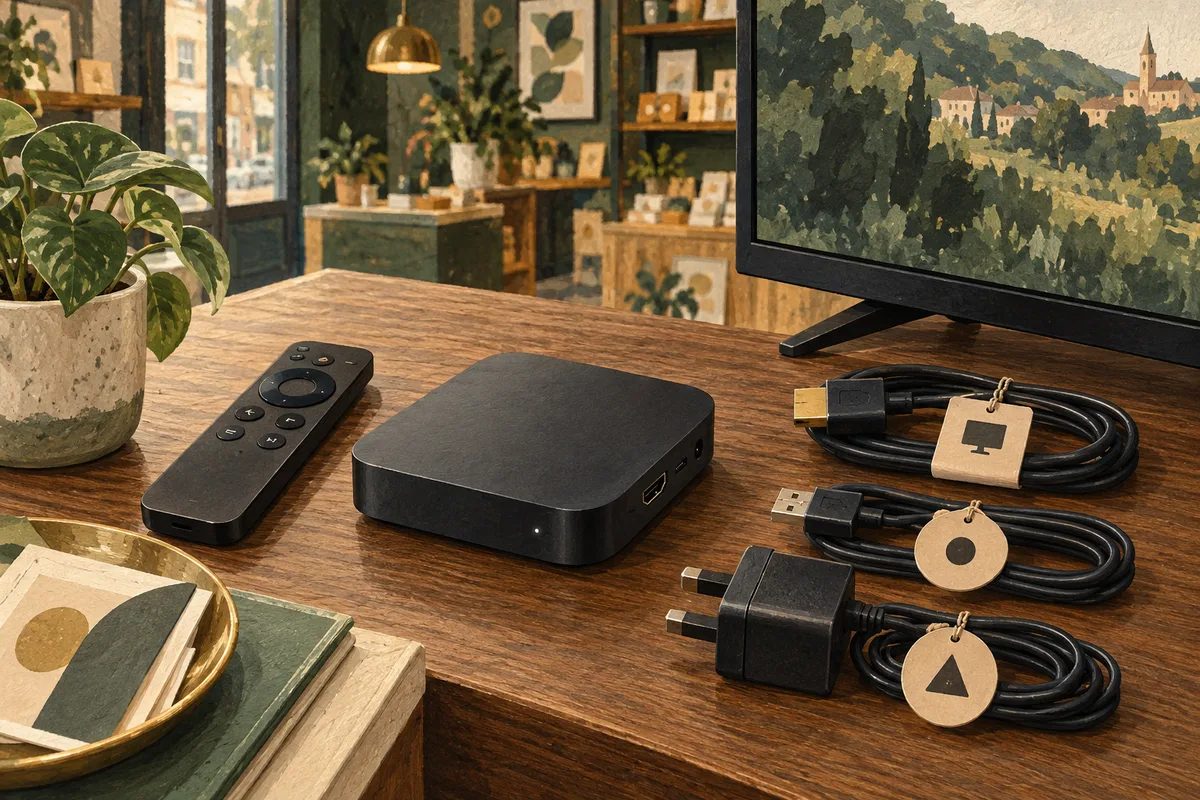
Choose a digital signage player by checking exact software compatibility, display connection, media performance, restart behaviour and remote management needs. Test one unit with your real content before buying a fleet. The cheapest device is only good value if it remains reliable in the location where it will run.
A media player is the small but important link between your signage software and the screen. It may sit behind the television, fit into an HDMI port or be built into a supported display. Its job is to receive the right content and keep presenting it reliably. This guide helps you compare options without getting distracted by impressive specifications that your actual playlist may never need.
Start with compatibility, not the shopping basket
Write down the signage software you plan to use, then obtain its current supported-player requirements. Confirm the exact device model, operating system and supported version. “Android device” or “smart TV” is too broad to be a purchasing specification. App availability, update policies and playback behaviour can differ between products with similar names.
Ask how the software is installed and registered, whether a separate player licence applies, and who supports the device if a problem arises. Check whether the provider supplies hardware or expects you to source it. An inexpensive device that requires an unsupported installation method can become expensive when nobody can help maintain it.
Create a written compatibility record before ordering. Include the date you checked, the source of the information and any limitations relevant to your content. If the answer is unclear, ask about your exact combination rather than requesting a general recommendation. “Will this model play our portrait videos and scheduled images?” is more useful than “Is this a good box?”
Understand the main player arrangements
An external player connects to the screen, commonly through HDMI. It can make replacement easier because the display and player are separate. You can keep a spare configured device and exchange it when needed. However, you must provide suitable power, cable clearance, mounting space and ventilation.
A supported built-in player reduces the number of separate components. It may create a neater installation, but its capabilities and support life depend on the display platform. Check how updates, remote access and recovery work. If the built-in system becomes unsuitable, you may still need an external player later.
A computer-based player can suit demanding layouts or specialised content when the software supports it. It also introduces ordinary computer maintenance: updates, startup applications, account permissions and power settings. More computing power does not automatically mean less work. Choose the simplest supported arrangement that passes your real tests, rather than building a miniature data centre to show a sandwich.
| Arrangement | Useful consideration | Check before buying |
|---|---|---|
| External player | Separate replacement and servicing | Power, mounting and exact app support |
| Built-in player | Fewer visible components | Platform lifecycle and recovery options |
| Computer | Potential flexibility for demanding content | Supported configuration and maintenance effort |
Match performance to the content you will show
Build a sample pack containing your most demanding intended content. Include a typical still image, your longest video, any portrait layout and any live web content you expect to use. Test the actual files, not just a supplier's demonstration. A smooth landscape video says little about a complicated webpage running beside another moving element.
Check the supported resolution, video codec and frame rate against the provider's documentation. Resolution describes only part of the workload. File encoding, animation complexity, simultaneous regions and network dependencies can all matter. If a file fails, export a documented supported version before concluding that more expensive hardware is necessary.
Watch transitions and repeated loops. Look for blank frames, delayed starts, audio surprises, incorrect cropping or gradual instability. Leave the pilot running through a representative working day. A two-minute test on a cool desk does not reproduce a warm installation behind a display during a long trading day.
Plan dependable power and physical installation
Use the manufacturer's specified power supply and follow the installation instructions. A television's USB socket may not provide the right power or may switch off unexpectedly; do not assume it is suitable simply because the connector fits. Confirm how both the screen and player behave when power returns.
Keep the device ventilated and accessible for servicing. Avoid trapping it tightly against insulation or covering vents with mounting tape. Consider the bend radius and strain on cables, especially where a wall mount leaves little clearance. A short extension or a different mounting position may be appropriate if supported by the equipment instructions.
Label the power supply and cable ends so staff can identify the correct equipment. Record where the remote control is stored and which display input should be selected. Many mysterious signage incidents are ordinary input changes, disconnected plugs or remotes that have quietly emigrated to another room. A small installation record saves a surprising amount of detective work.
Check the network from the actual mounting position
Test connectivity where the player will live, not beside the router. A display, metal bracket or wall can change wireless reception. Where practical and supported, a wired connection may simplify reliability, but the right choice depends on the building and network. Coordinate with the person responsible for IT before changing settings.
Ask the provider which network access is required. Guest Wi-Fi that uses a browser sign-in page may need special consideration, and access that expires overnight can interrupt unattended operation. Do not disable security controls as a shortcut. Document an approved configuration and make sure someone knows how credentials or network details will be updated.
Understand what happens without internet. Cached images may continue while live pages fail, and remote commands cannot reach a disconnected player. Test a planned interruption using the pilot, then restore connectivity and confirm recovery. Record whether a manual restart was necessary and whether newly published content arrived afterwards.
Assess management and support over the device's life
Ask what you can see remotely: connection status, content status, screenshots, logs or restart controls, if available. Separate features provided by the signage platform from features provided by the device manufacturer. Do not assume every player supports every management tool shown in a sales demonstration.
Check the support and update period, warranty arrangements and replacement process. A remote site may need a spare device more than it needs an extra performance specification. Work out who will install a replacement, how it will be registered and how the correct content will be restored without recreating the whole setup.
Consider account ownership too. Use business-controlled accounts and approved access methods. Avoid a setup tied permanently to one employee's personal account. When someone leaves, the organisation should still be able to manage the hardware and recover access. Store sensitive credentials securely and keep the ordinary asset register free of passwords.
Use a pass-or-fail pilot checklist
- Confirm that the exact player model is supported.
- Install and register it using the documented process.
- Play the representative content pack in its intended orientation.
- Run it through a normal operating day.
- Publish a changed file and verify it on the physical display.
- Test an agreed restart and temporary network interruption.
- Check recovery, remote visibility and maintenance access.
- Record limitations and decide whether they are acceptable.
Give each test an owner and a clear result. “Looks fine” is less useful than “The new menu appeared on reception-screen-01 and remained readable through three loops.” Capture the configuration that passed so future installations can reproduce it. Keep an unchanged fallback playlist available during the trial.
If a test fails, isolate one variable at a time: file, network, cable, display input or player. Swapping everything at once may restore the picture while leaving the cause unknown. That makes the next failure harder to fix and can lead to unnecessary purchases.
Compare the full cost, including interruptions
Include the player, power supply, mounting accessories, installation, licences, support and replacement allowance in your comparison. Add staff time for configuration and maintenance. A modest price difference may be worthwhile if it substantially simplifies recovery at a distant branch.
Use the same operating assumptions for every option: number of screens, daily hours, content types and expected support period. Keep uncertain items marked as estimates. The digital signage cost worksheet helps separate upfront and recurring spending. Once the equipment is selected, follow the first-screen setup guide for a controlled launch.
Frequently asked questions
Is a streaming stick always suitable?
No. Suitability depends on the exact model, operating system, signage application and intended content. Check current support information and test the device. A product being able to stream entertainment does not prove it can run your signage configuration reliably or offer the required remote controls.
Do I need a 4K player?
Choose based on your screen, viewing distance and actual content requirements. Higher resolution may help detailed visuals, but it is not a substitute for readable design. Confirm that the entire setup, including files and display connection, supports the intended output before paying for additional capability.
Can several screens share one player?
Some arrangements distribute one picture to multiple displays, while independent content may need separate outputs or players. Support varies. Describe whether the screens should show identical, different or synchronised content and confirm the required hardware with your provider before designing the installation.
What is the most useful spare to keep?
For a larger deployment, a tested replacement player with its correct power supply can shorten interruptions. The appropriate spare depends on your installation and support agreement. Keep its registration process documented, and periodically confirm that it still works with the current software and content.